
Websites & scheduling with elssle Publisher
Connect a WordPress destination to elssle Publisher and decide when articles should appear. Set up the destination first so later jobs can use the correct categories and account.
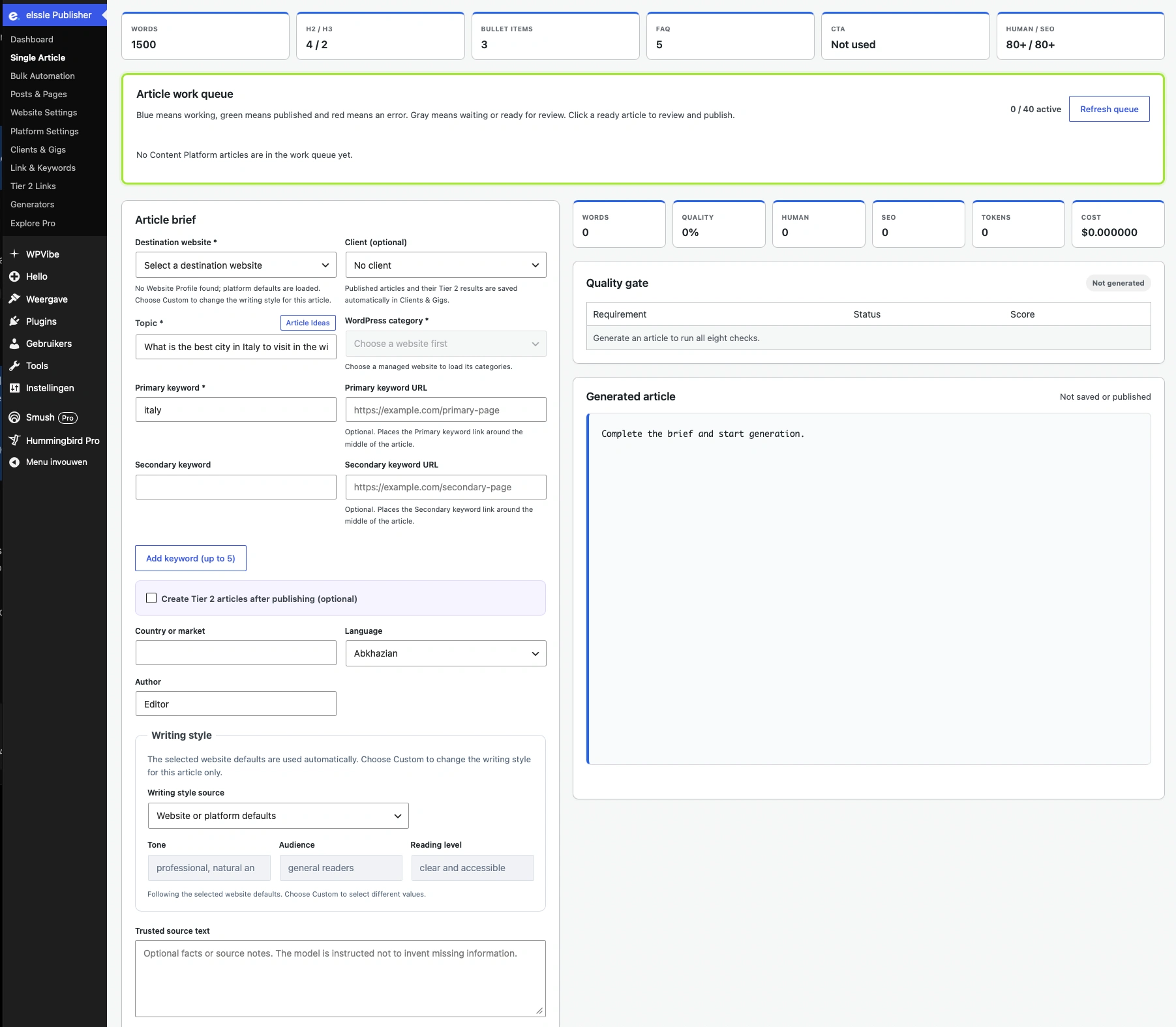
Connect WordPress sites and schedule articles
connect WordPress sites and schedule articles: Website URL, username and Application Password
Use the real HTTPS website address and the WordPress user allowed to create the intended content. Generate an Application Password in the destination account and store it through the connection settings.
Test connection
Run the connection check and verify that the expected website and categories are shown. Fix the URL or destination permissions if the connection test fails.
Defaults
Set the usual language, category and tone for this destination. Review those values whenever an individual article needs a different audience or style.
Choose when to publish
Immediate, scheduled or manual
Choose how the job should be published. If scheduling in WordPress, supply a future date and check the destination time zone. Manual review leaves you in control of the final publication step.
Verify the result
Open the destination WordPress admin to check the actual status and scheduled time. If the post misses its time, inspect the publishing queue and the destination’s WordPress scheduling.
Manage your content workflow more effectively when you connect WordPress sites and schedule articles through the Publisher interface. By setting up your destination URL and Application Password first, you ensure that every subsequent job reaches the right category without manual errors. You can define your default language and tone settings for each site, which saves you time during the creation process. If the connection test fails, simply double-check your HTTPS address and user permissions to get everything synced correctly before you start pushing content.
Take full control over your publishing timeline by choosing between immediate, manual, or future dates. When you connect WordPress sites and schedule articles, always verify the destination time zone to prevent posts from appearing at the wrong hour. For those who prefer a final quality check, the manual review option keeps the publication step in your hands. If a post doesn't appear as expected, a quick look at the WordPress admin queue or your internal publishing settings will help you resolve the issue.