
Internal links with elssle SEO
Improve your WordPress internal linking so your visitors can reach the right page without using the navigation menu. Start with a few clear rules and check their effect on published content.
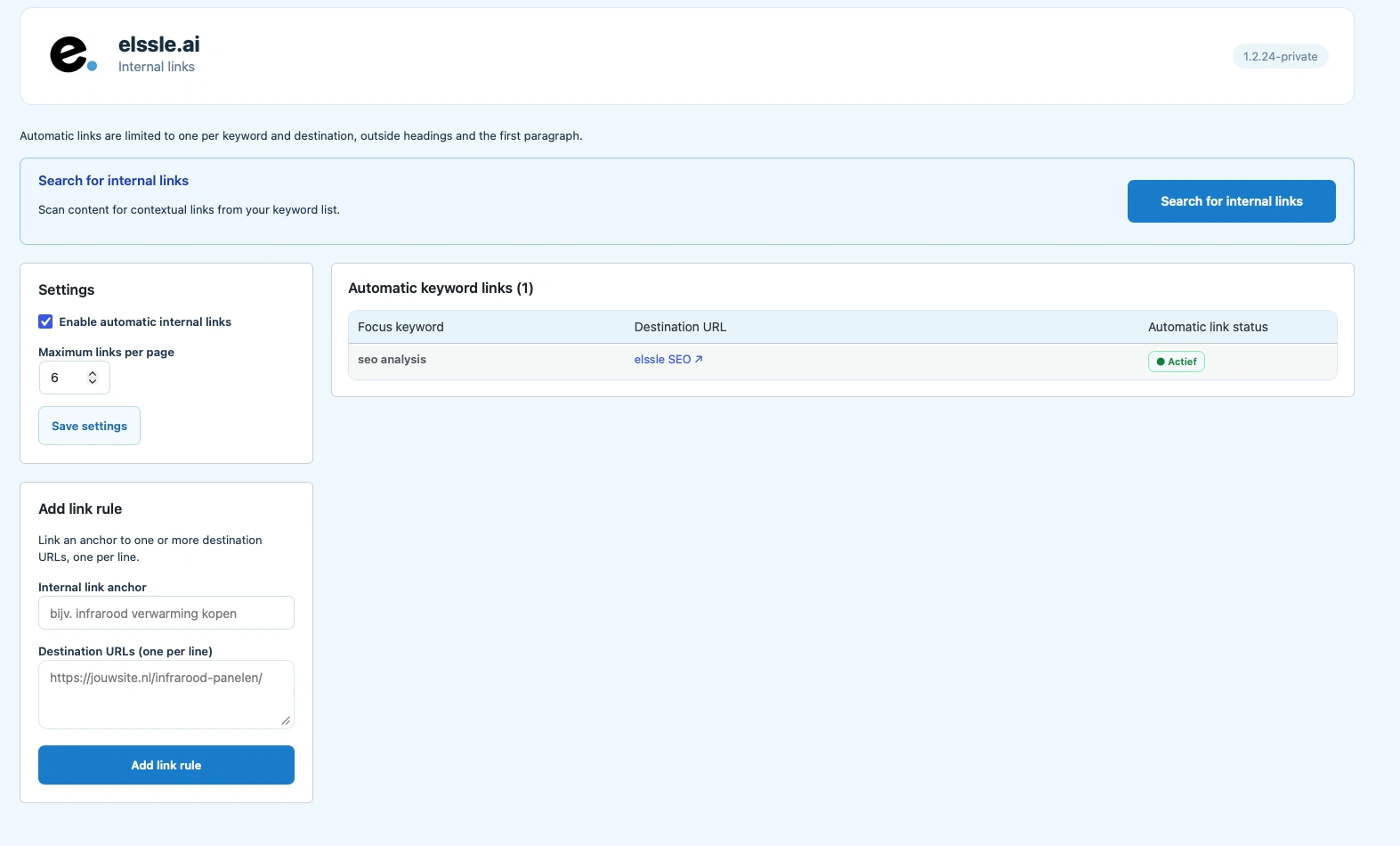
WordPress internal linking: Create a linking rule
WordPress internal linking: Keyword or anchor
Enter the phrase that should become a link when used naturally in eligible text. Choose wording that gives the reader a clear idea of the destination.
Destination URL
Use the full address of the relevant page on this website. Open the address yourself before saving to check it loads directly and has the right content.
Set limits and verify on the page
Enable internal linking / Link limit
Enable the module and decide how many automatic links should appear per page. Start with a small number, particularly on short product descriptions.
Save and test
Save the rules and open a page containing the exact anchor phrase. Read the sentence, follow the link and adjust the rule if the destination is too broad or the anchor reads awkwardly.
Maximum links per page
This limits the number of automatic links on a page. Use Save settings after changing it or switching Enable automatic internal links.
Search for internal links
Scans content for contextual matches. Review Source page and Inserted internal links in the results to see where links can appear.
Add link rule / Destination URLs
Enter a phrase in Internal link anchor and use one URL per line in Destination URLs. Automatic keyword links shows destinations from the keyword list, while Additional link rules displays manually added rules and its Delete action.
Existing links
Review manual links around the same phrase. Keep the link that adds value and avoid sending readers to unrelated products merely because their keywords are similar.