
Cookie with elssle SEO
Configure the cookie banner in elssle SEO so visitors can make a clear choice. Review its links and styling, then test the banner as a new visitor.
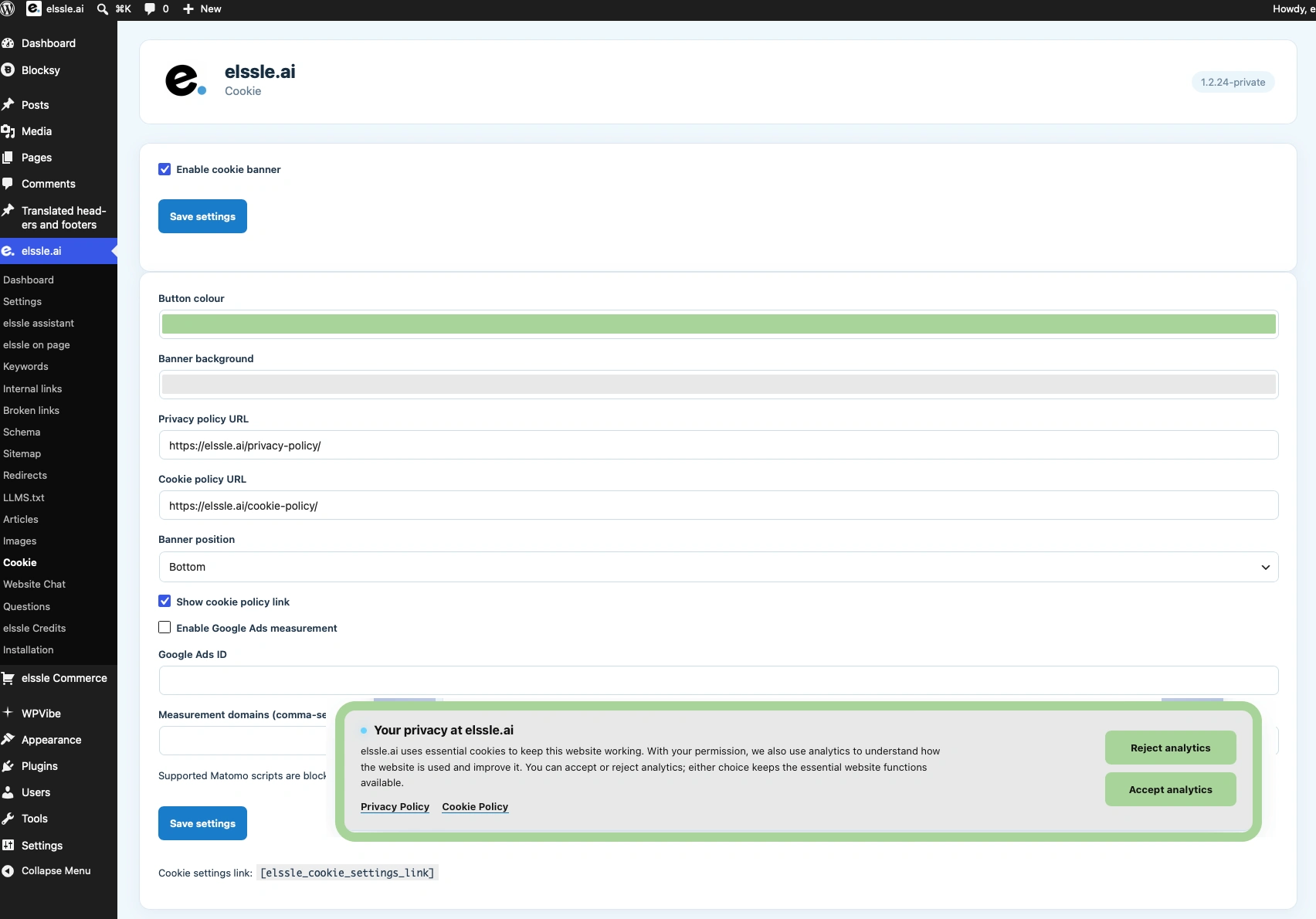
Adjust your WordPress cookie banner settings
WordPress cookie banner settings: Enable cookie banner / Save settings
Use the checkbox to enable the module and save that panel. If a supported competing consent plugin is active, check which banner the site is actually using.
Button colour, Banner background and Banner position
Choose contrasting colours and place the banner at the top or bottom. Preview the result on mobile and check that links and buttons remain easy to use.
Privacy policy URL, Cookie policy URL and policy link
Enter the current public pages and enable the cookie policy link when you want it displayed. Open both addresses from the live banner.
Review measurement and consent controls
Google Ads measurement, Google Ads ID and Measurement domains
Enable measurement only when you use it. Enter the correct ID and include the intended domains, separated by commas.
Save settings and Cookie settings link
Save the second panel. Use the Cookie settings link shortcode where visitors should be able to return to their choices. Test accepting, declining and reopening settings in a fresh session.
Adjust your WordPress cookie banner settings to ensure your site meets legal transparency requirements. Start by choosing high-contrast colors for your buttons and background so the notice stands out clearly against your theme. You can place the banner at the top or bottom of the screen, but remember to check the mobile view to make sure the layout stays user-friendly on smaller screens. Once you have linked your privacy and cookie policy pages, verify that every link opens the correct public page before you go live.
Fine-tune your WordPress cookie banner settings by configuring the Google Ads measurement tools and IDs specifically for your active domains. Use the provided shortcode to add a cookie settings link in your footer or menu, allowing your visitors to change their consent preferences at any time. To confirm everything works as intended, open your site in a private browsing session. Test the process of accepting and declining cookies to see exactly what your users experience during their first visit.