
Improve your WordPress pages with elssle SEO
Open a page in WordPress, choose a search phrase and improve your SEO in the passage in front of you. Write the changes yourself or ask elssle.ai to suggest a title, a clearer paragraph or an image. You decide what goes live.
Settings for your SEO
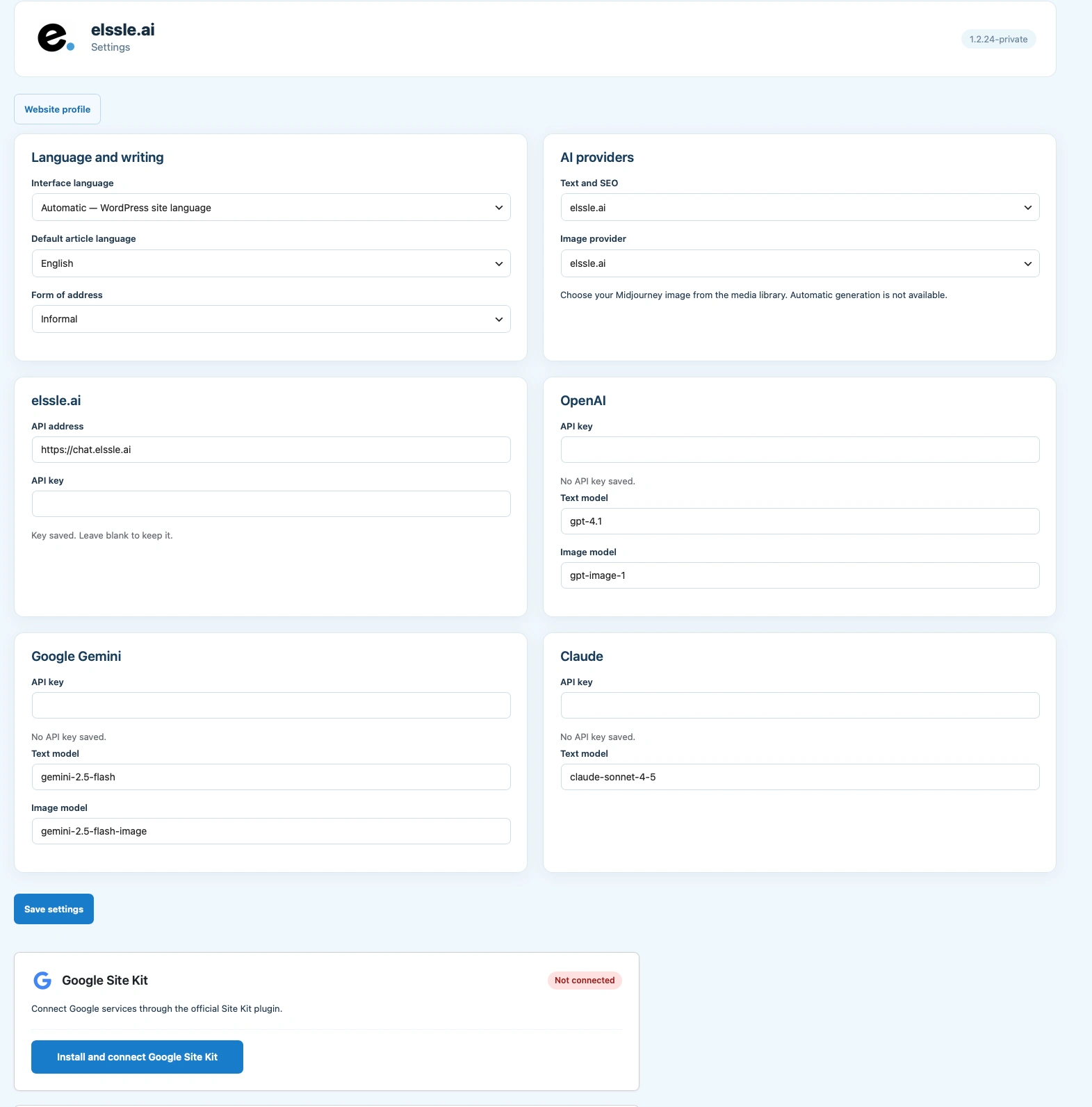
Pick the language and tone you use with customers, then select your text and image providers. Your subscription with elssle.ai includes daily AI credits for every licensed website. Use those credits to refine your SEO, draft an article, or generate a high-quality image.
Prefer to use your own AI account? Add your OpenAI API key in Settings and select OpenAI for the SEO tasks you want it to handle. Google Gemini and Claude are also options for text. When you use your own key, your provider bills that usage separately.
You can also set up your SEO through Site Kit by Google in Settings. Install the plugin if needed, then follow its wizard to connect.
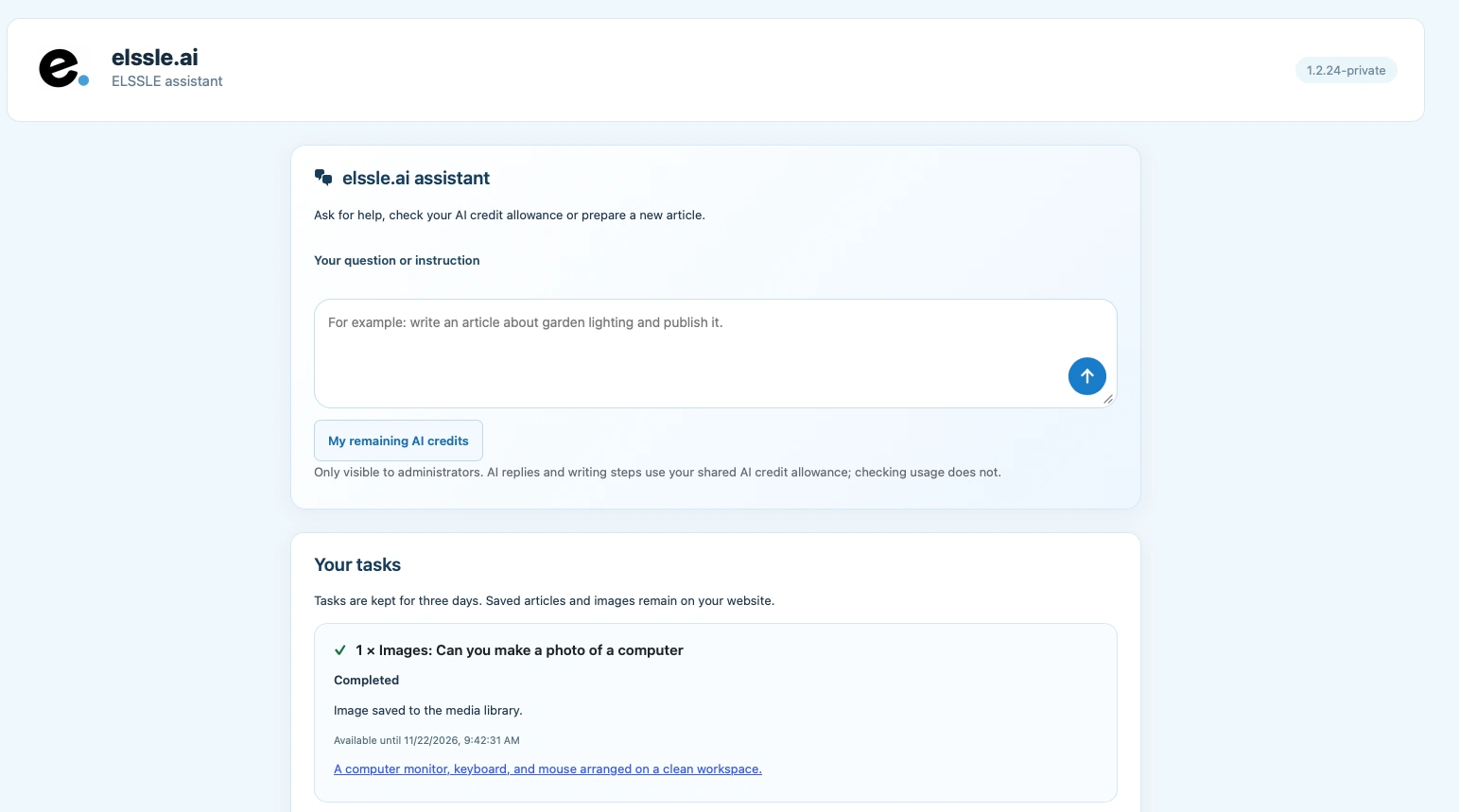
elssle assistant
Give the elssle.ai assistant a concrete task, such as preparing an article from your notes or checking your remaining credits. For longer jobs, return to the assistant to follow progress and review the result before using it on your site.
elssle on page
Open a page, post or product and work on it in context. Choose a paragraph to rewrite, inspect its headings or preview its search description. You can type your own changes or ask elssle.ai for a suggestion and decide which wording to keep.
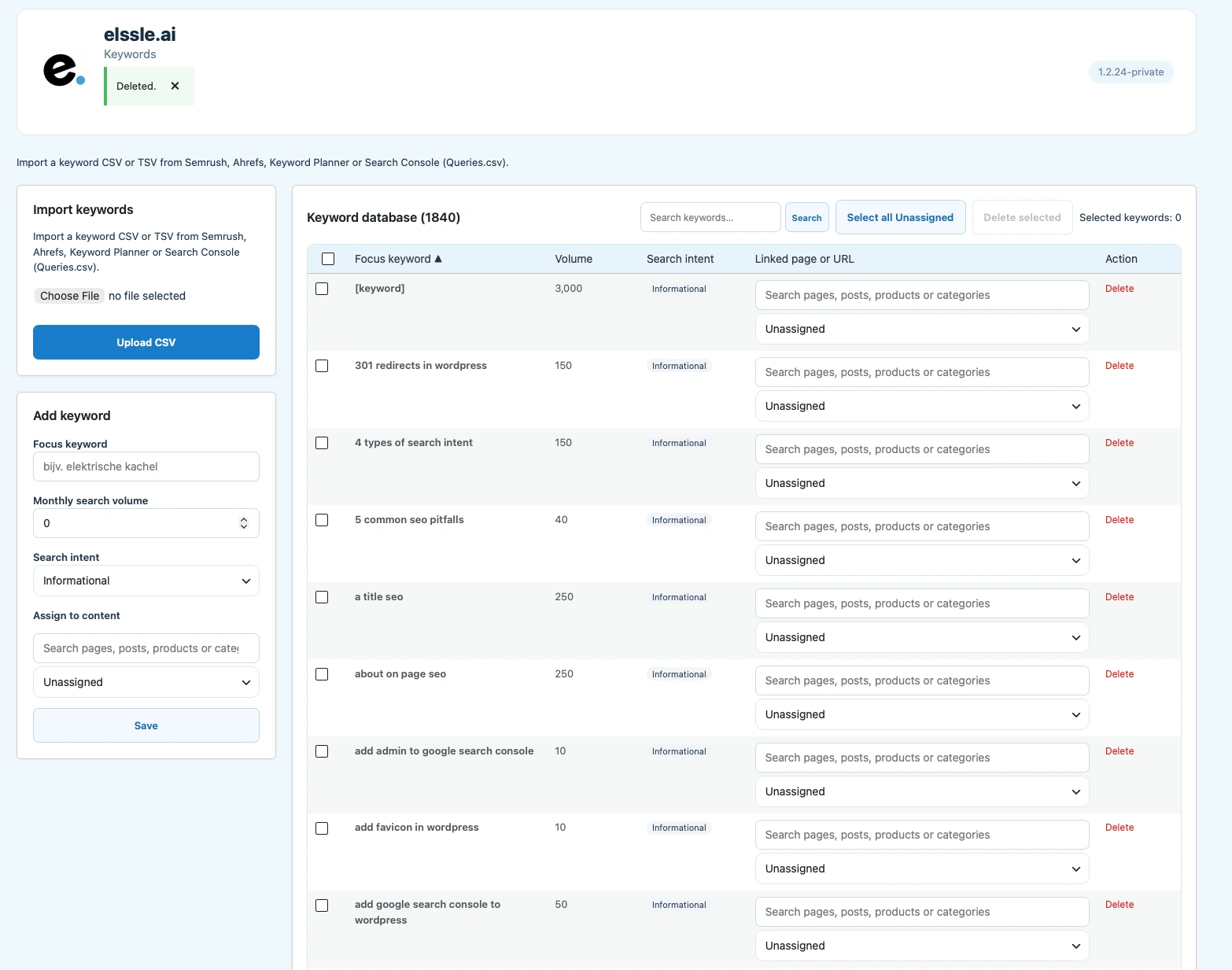
Keywords
Build a keyword list around the questions customers ask. Import your research or enter phrases by hand, then assign a focus keyword to the page that best answers each search. When planning another article, look for a phrase you have yet to cover.
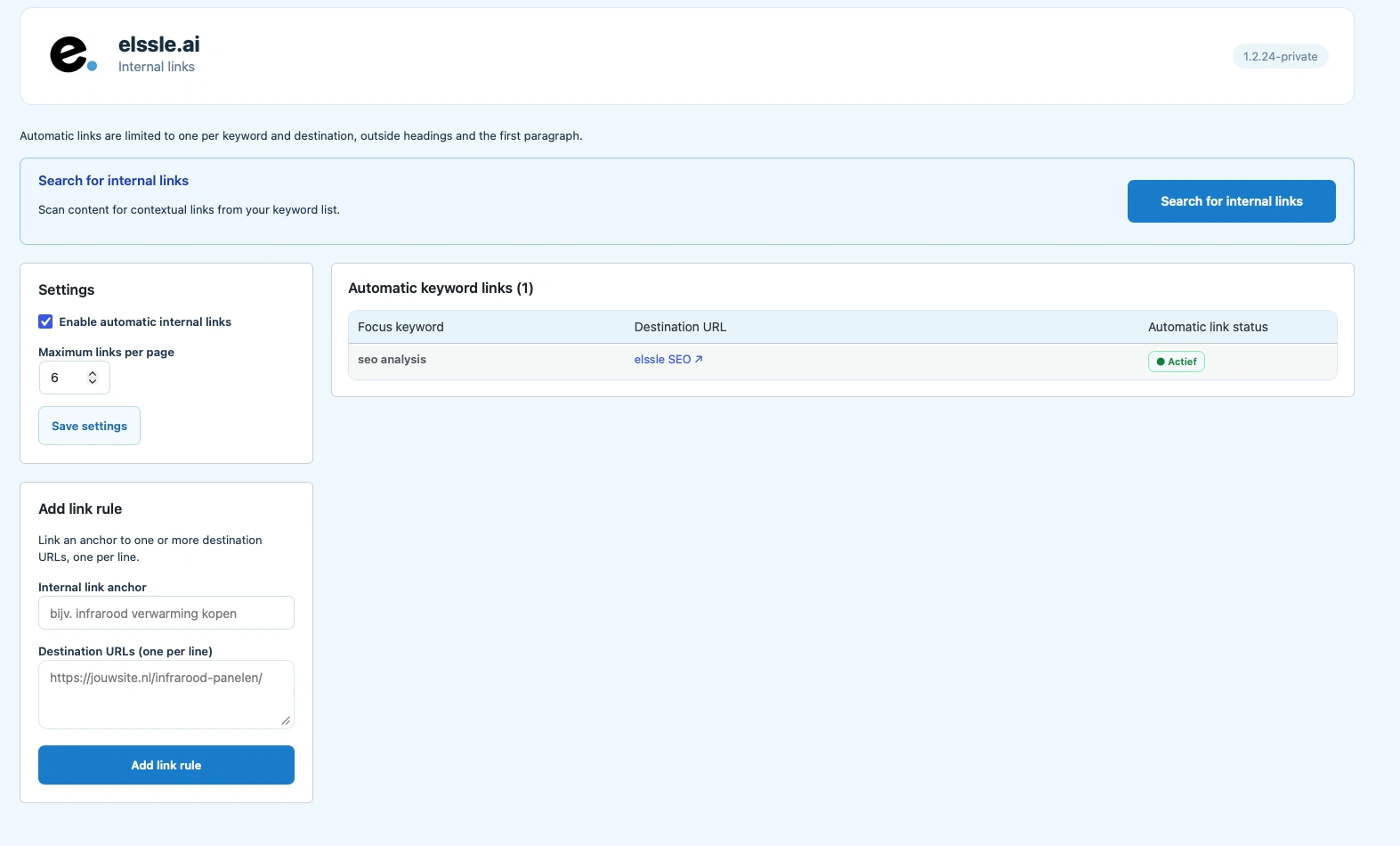
Internal links
Help a reader move from a broad guide to the next useful page. Give elssle.ai a phrase and a destination on your site, then enable the linking rule for eligible content. Review the link in its sentence to make sure the destination delivers what the anchor promises.
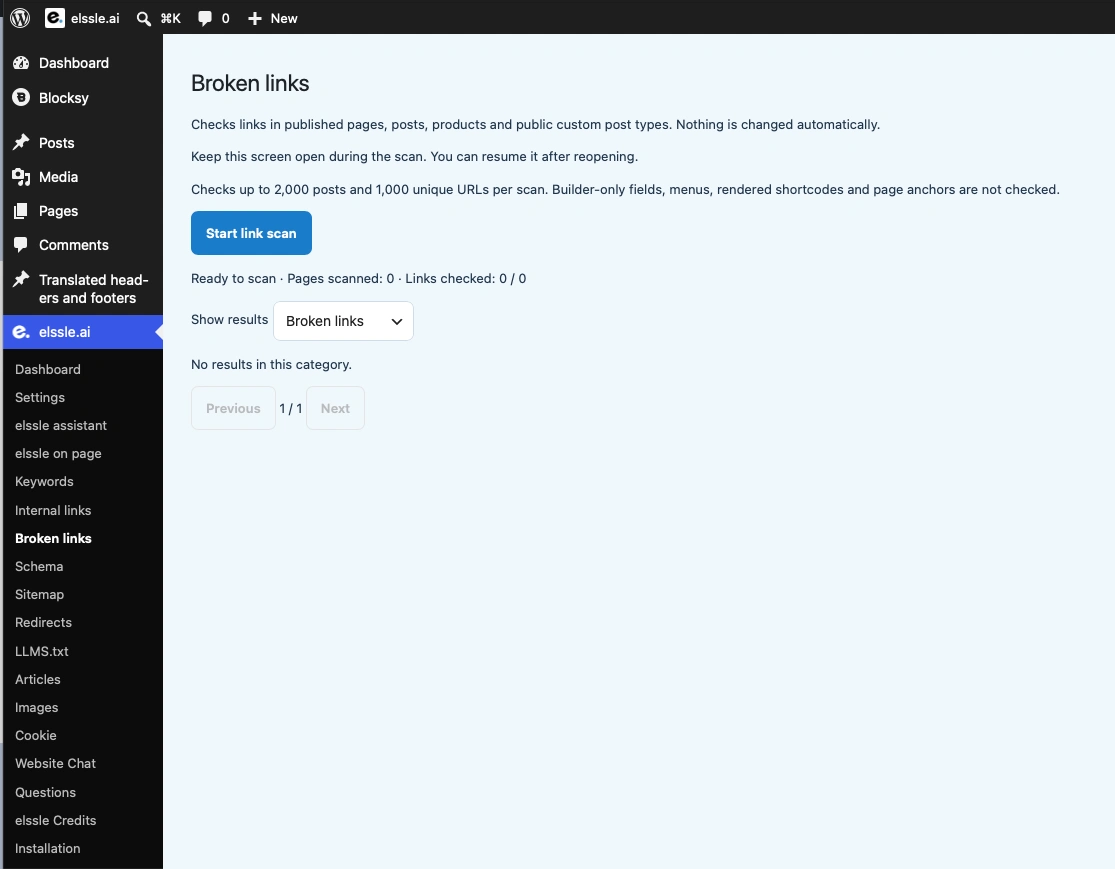
Broken links
Find the pages that send readers to a missing destination. Start a scan yourself or let the elssle.ai assistant work through it in steps. Inspect each result, check uncertain responses again and choose a replacement URL when a link really needs fixing.
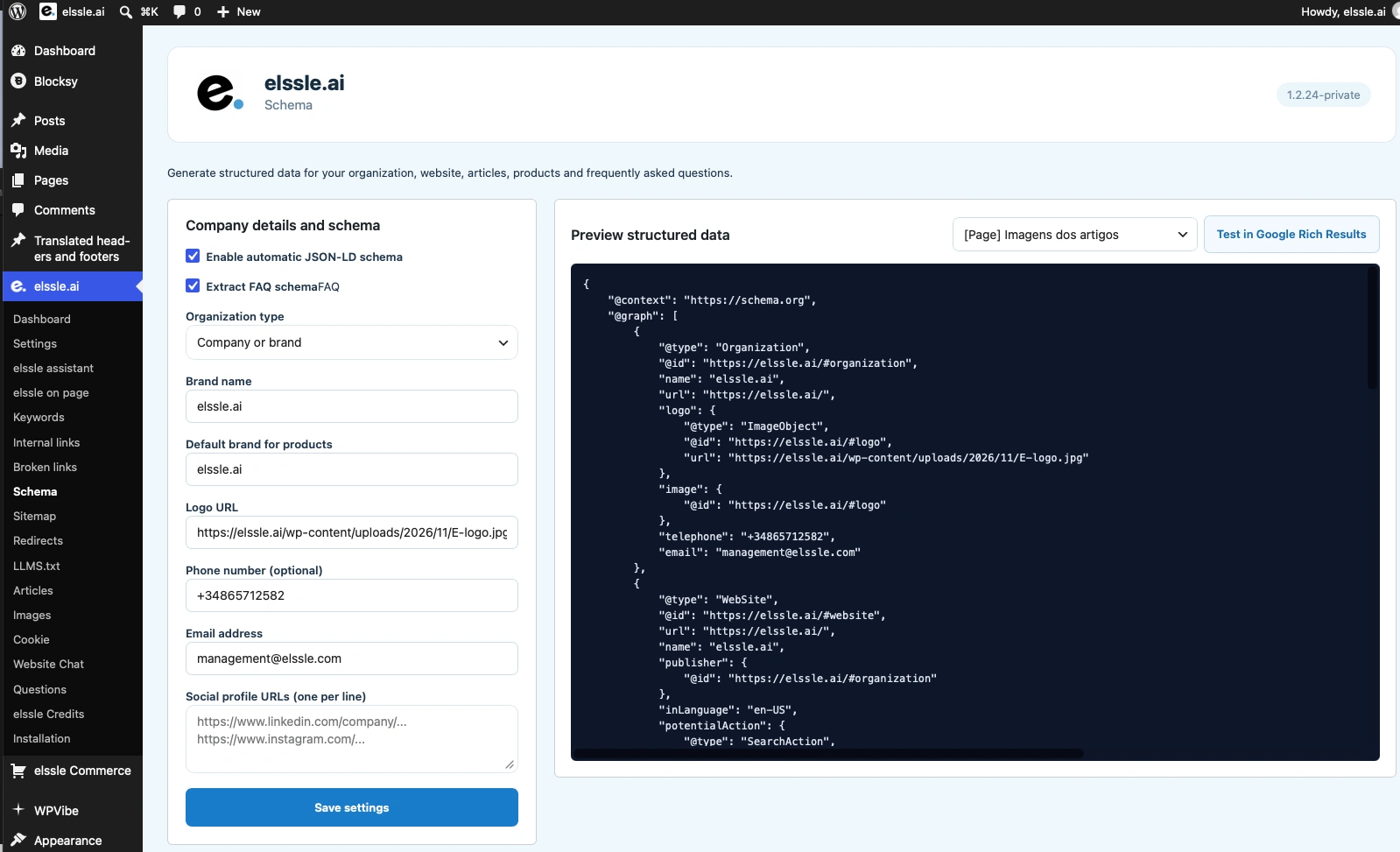
Schema
Use structured data to describe the content a visitor can actually see. In elssle.ai, review the schema settings alongside the page they describe. Check names and details against the published copy before saving a change.
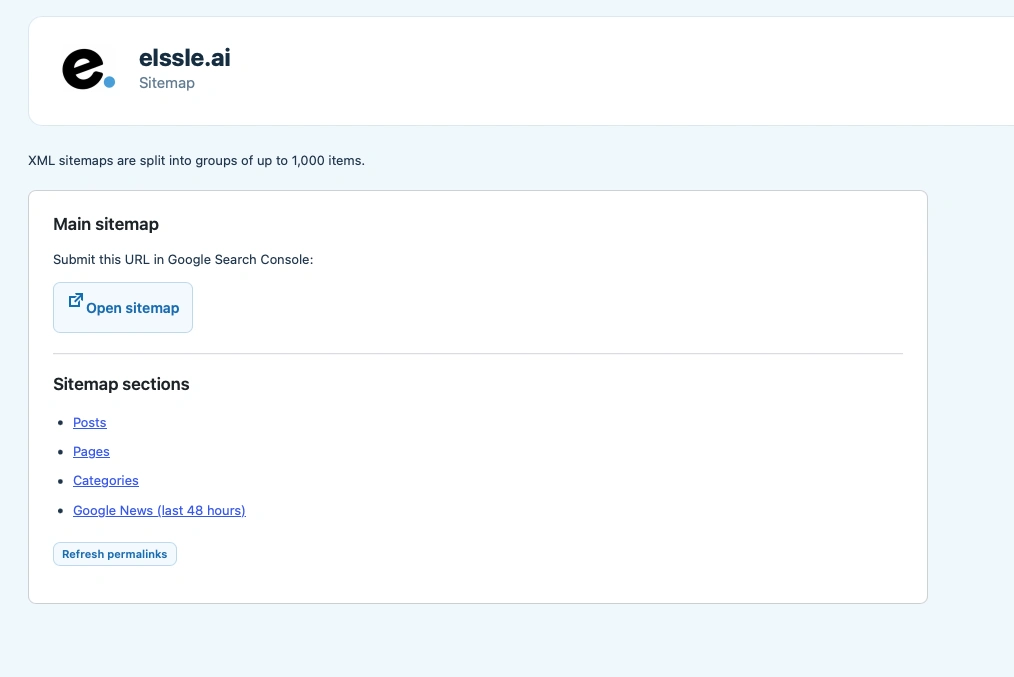
Sitemap
Give search engines a map of the pages you want them to discover. Review the sitemap settings in WordPress, open the resulting sitemap and submit its address through your search engine tools. It is a practical check after adding a new section to your site.
Redirects
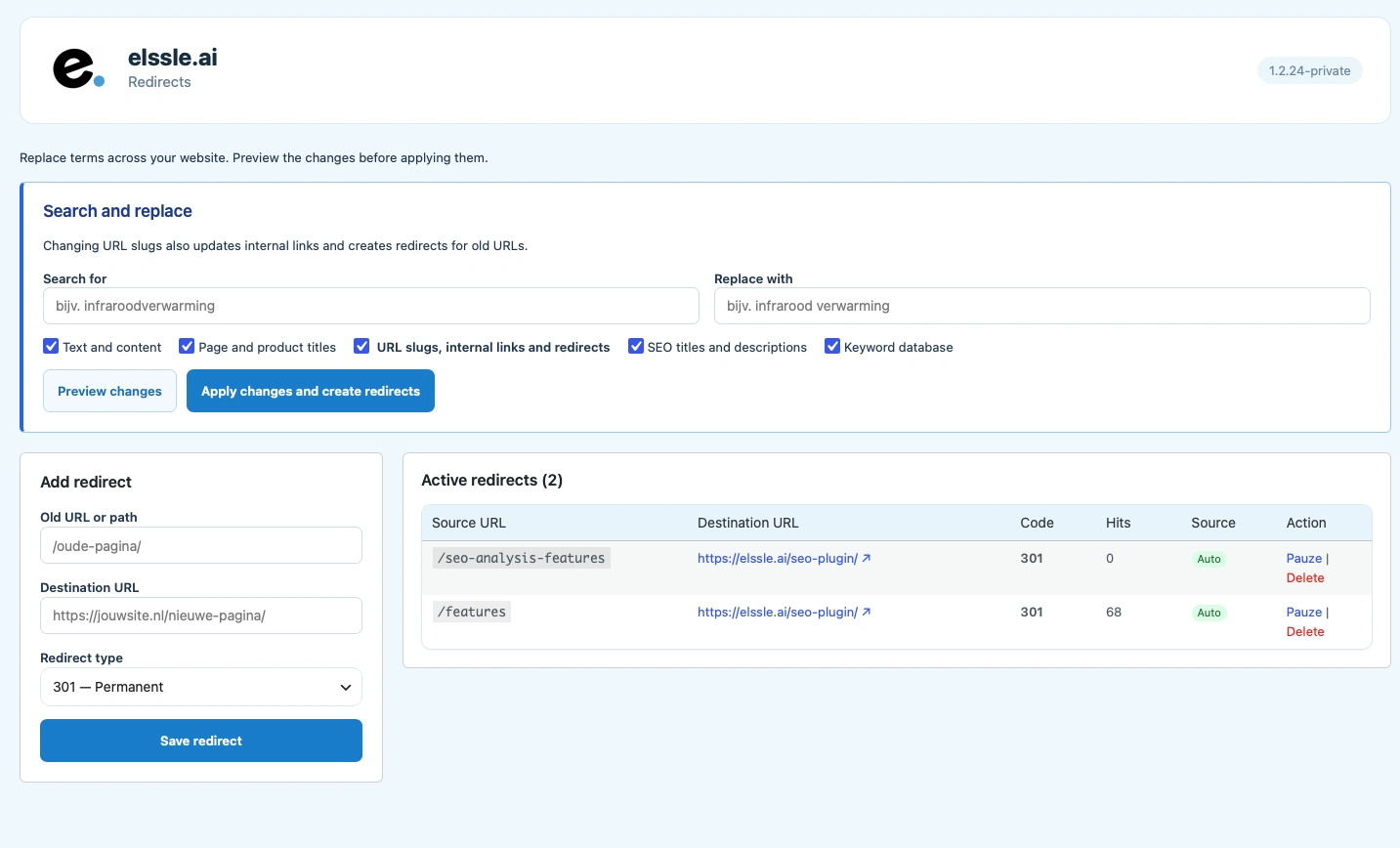
When a page changes address, point the old URL to its most relevant successor. Use the redirects area to review those routes. If wording has also changed, preview the affected content before using the separate replacement tool.
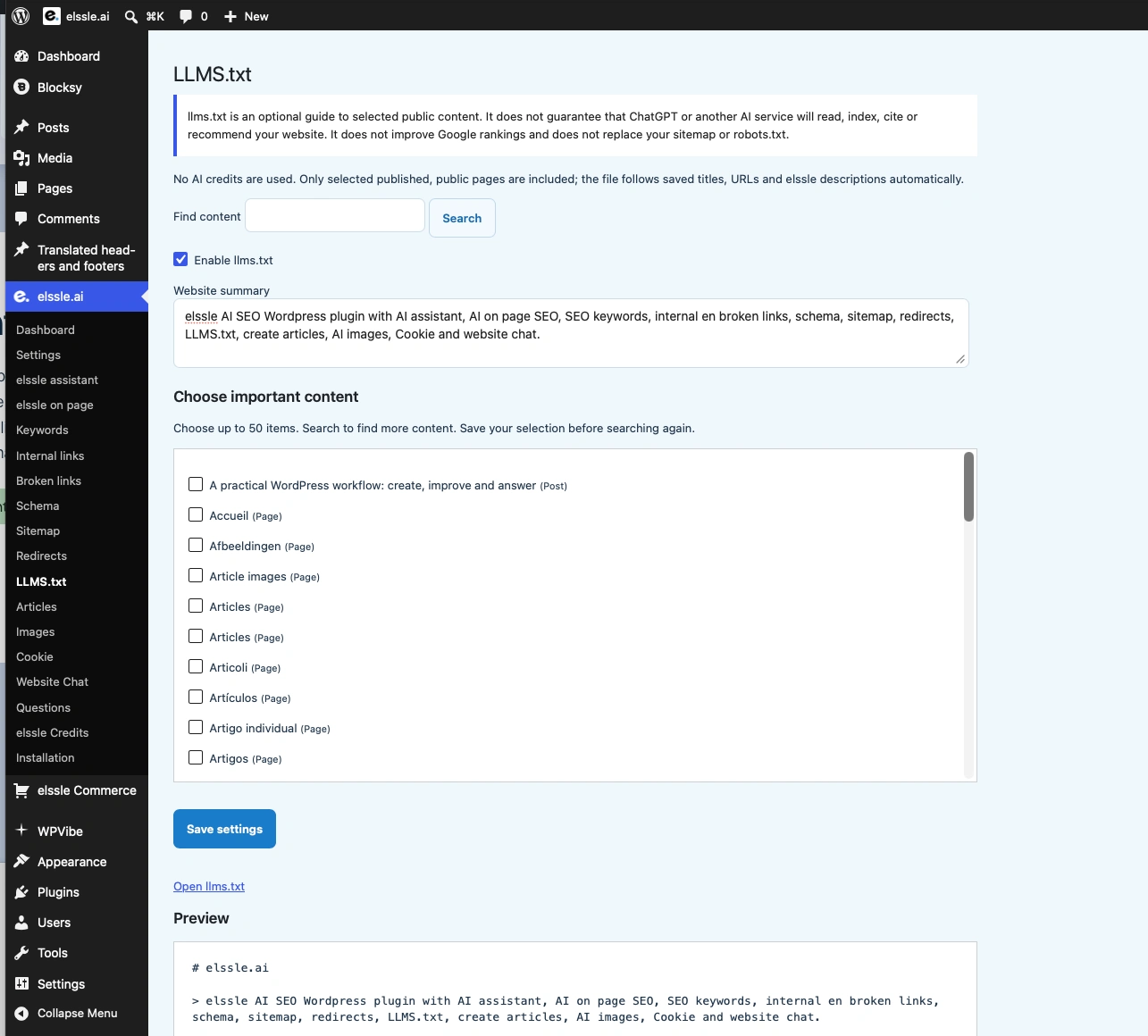
LLMS.txt
Choose the public pages that best explain your business, products and services. elssle.ai lets you select the URLs for your llms.txt file. Read the published file yourself and revisit your selection when an important guide moves or a new service launches.
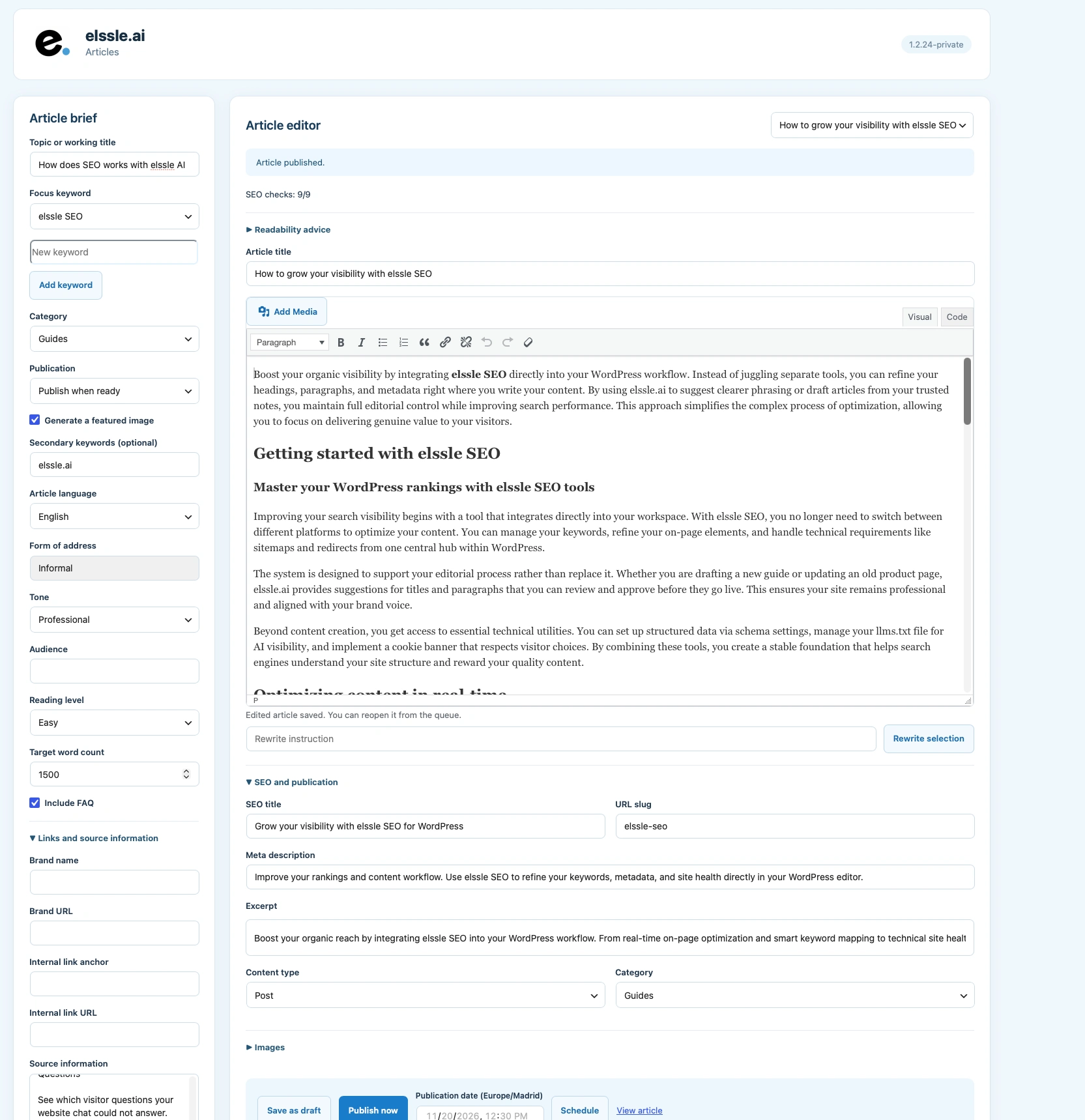
Articles
Start with a brief, a focus keyword and source notes you trust. Let elssle.ai draft an article with headings, then edit the wording, excerpt and metadata in WordPress. Check names and factual claims against your sources before scheduling or publishing.
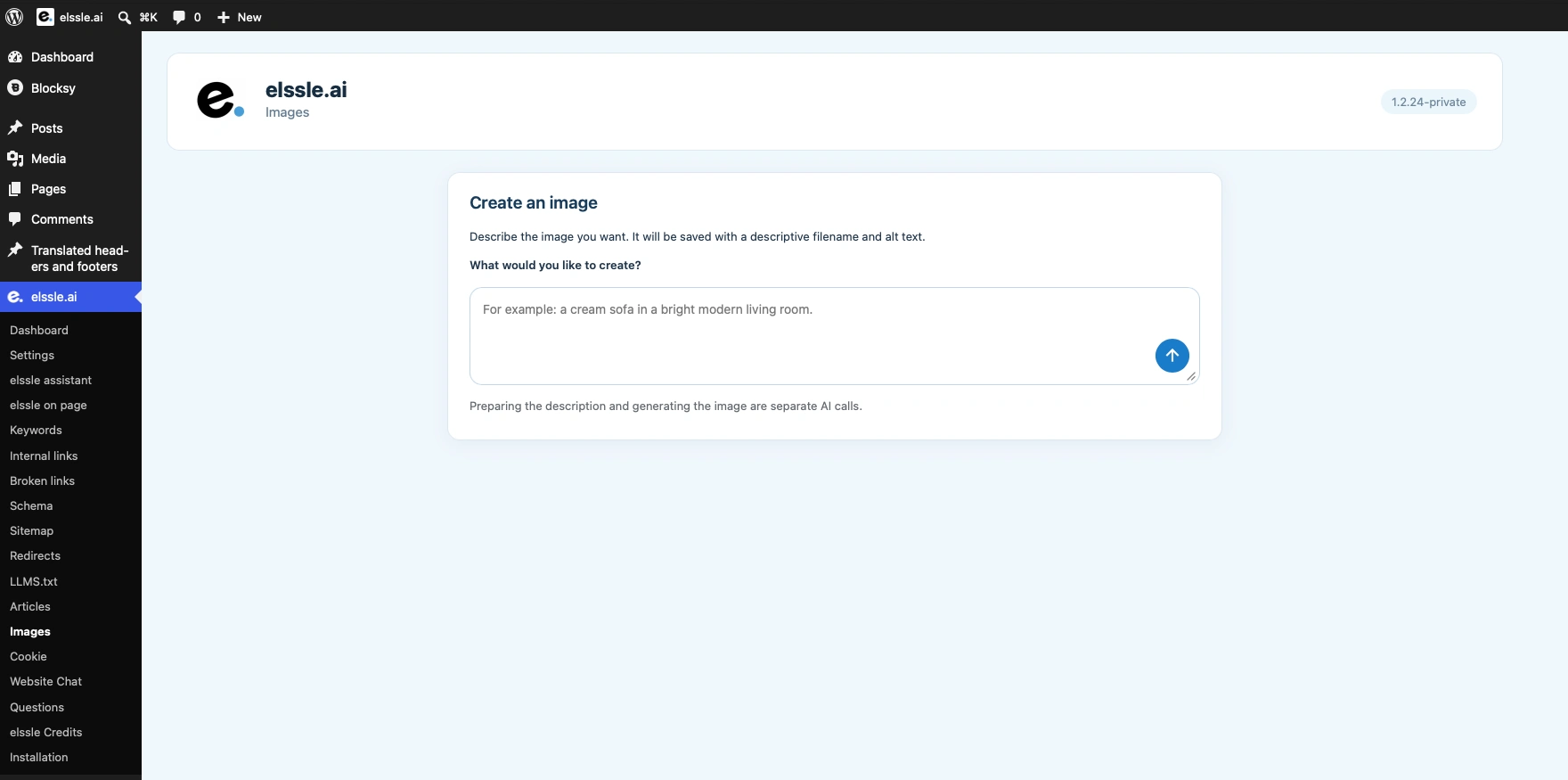
Images
Describe the subject and setting you want elssle.ai to illustrate, or upload a photograph you already own. Check the result at the size it will appear on the page. Give it a descriptive filename and write alt text that explains what matters in context.
Cookie
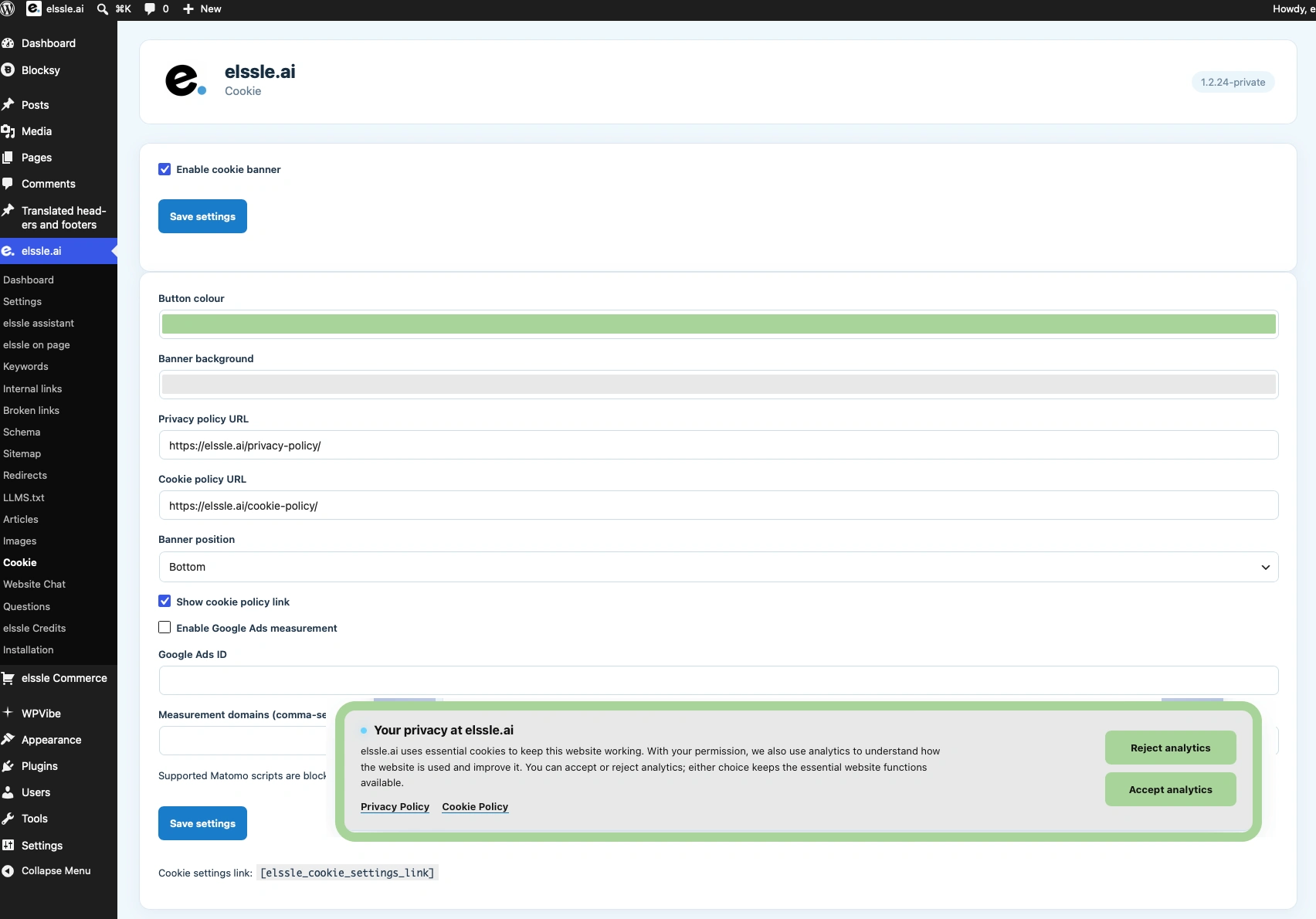
Set the banner colours and policy links so visitors can recognise your site and find their consent choices. Check the banner from a visitor’s perspective and review how your tracking services respond to those choices.
Website Chat
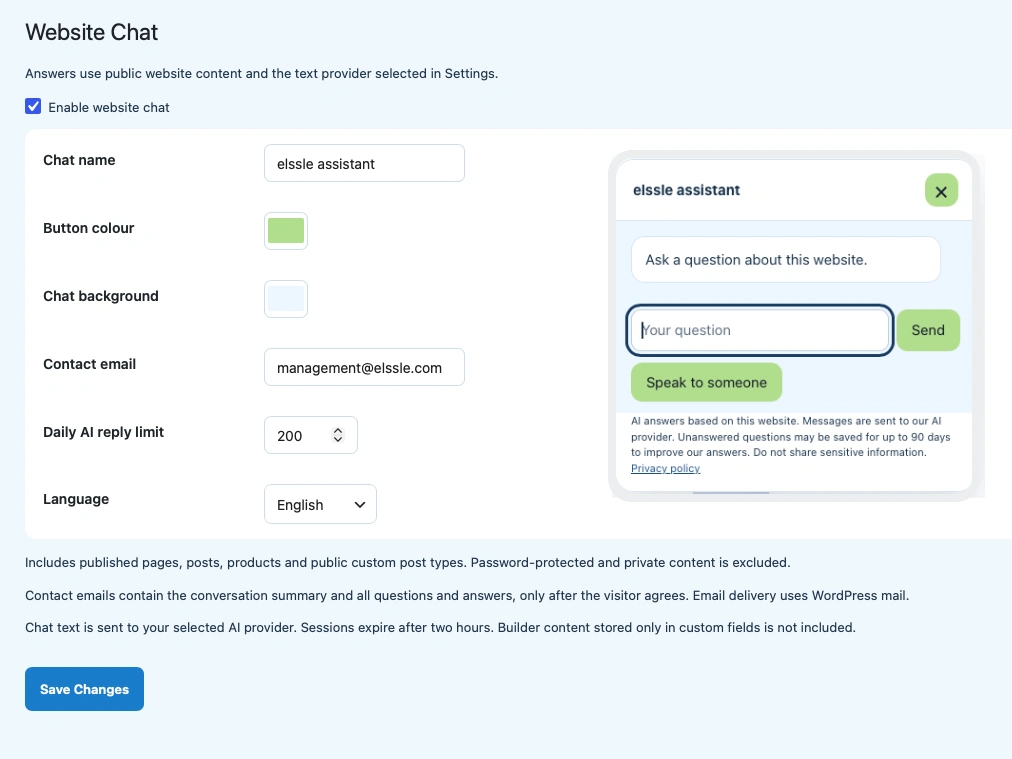
Give the chat a name and colours that fit your website. elssle.ai uses public pages, posts, products and approved answers to help visitors. Set a contact email so someone who needs personal help can request a follow-up.
Questions
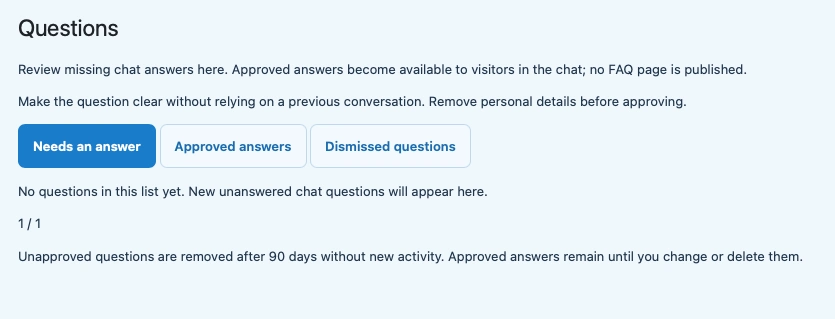
See which visitor questions your website chat could not answer. Write a response yourself or ask elssle.ai for a first draft. Check it against your business information, choose where it applies and approve it for future conversations.
elssle Credits
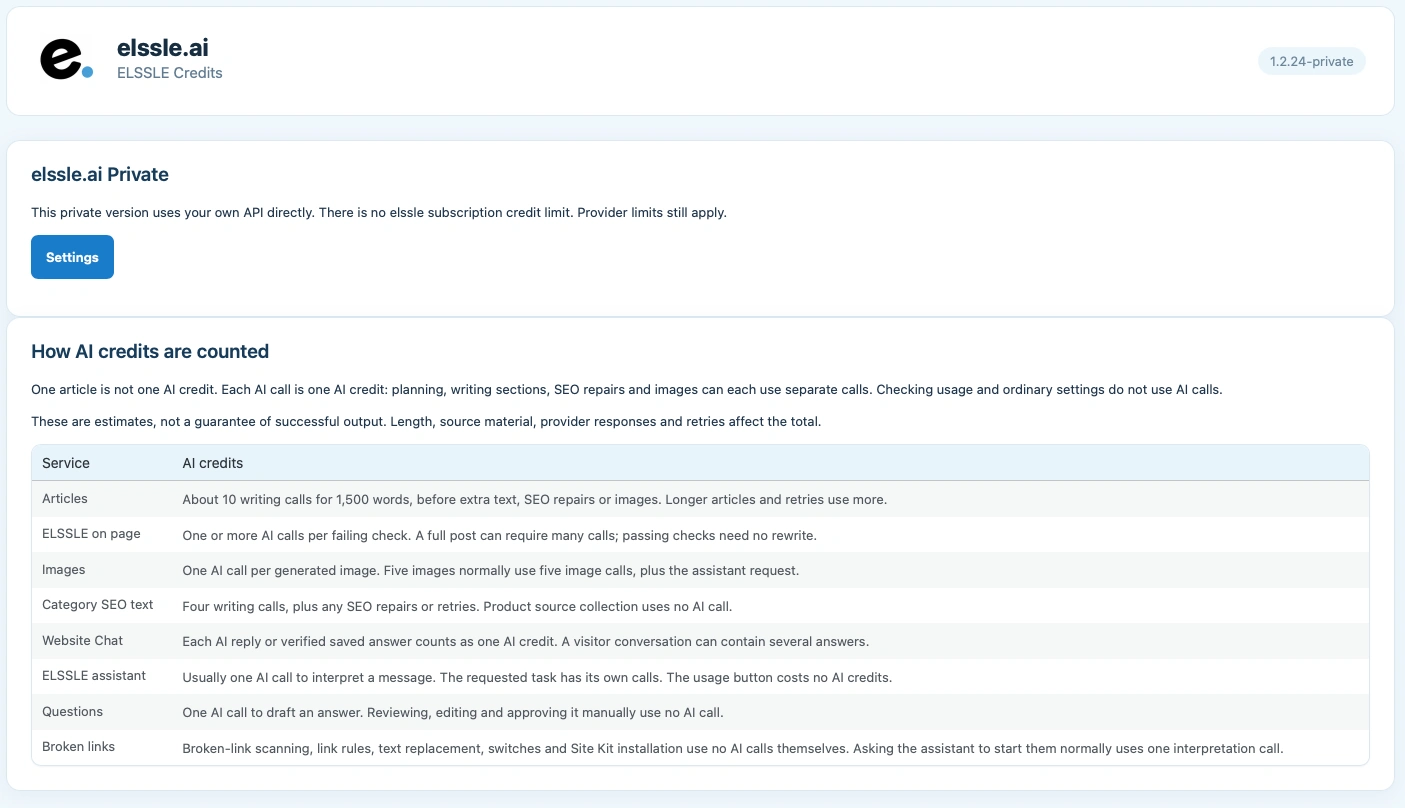
Connect your website code and see the daily AI allowance for that site. Text, images, SEO and chat share the same balance. Standard includes 500 credits per website per day, Pro includes 1,000 and Ultra includes 2,000. The allowance resets at 00:00 UTC.
Installation
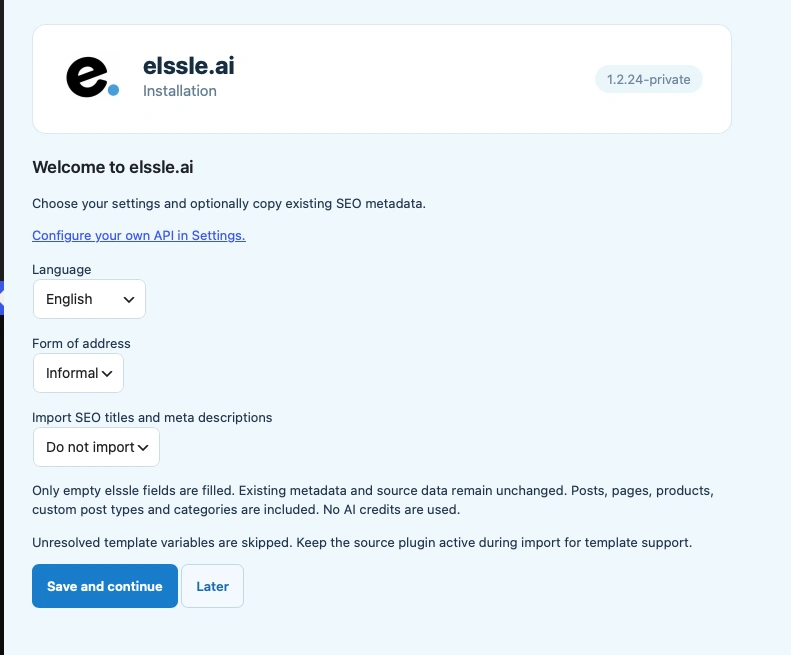
Choose your content language and form of address before the first editing session. If you are moving from another SEO plugin, review the available import source and decide which titles and descriptions to copy. Check a familiar page after setup.
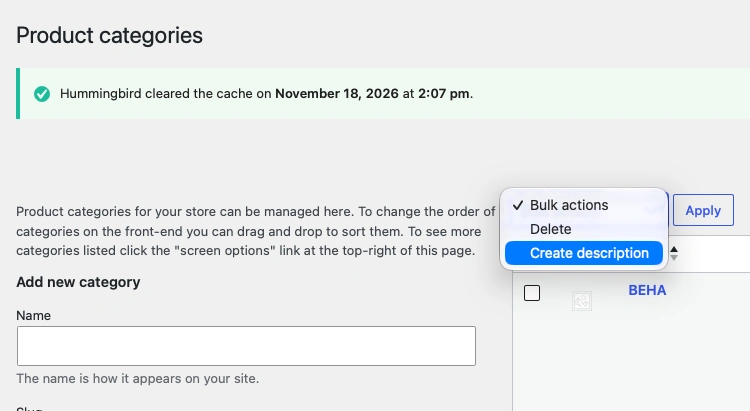
Category search engine optimization text
Give a WooCommerce collection an introduction grounded in the products it contains. Choose a category and focus keyword. elssle.ai can use up to five relevant products as sources for a longer description. Review specifications, product claims and wording before saving.
Inside the WordPress editor
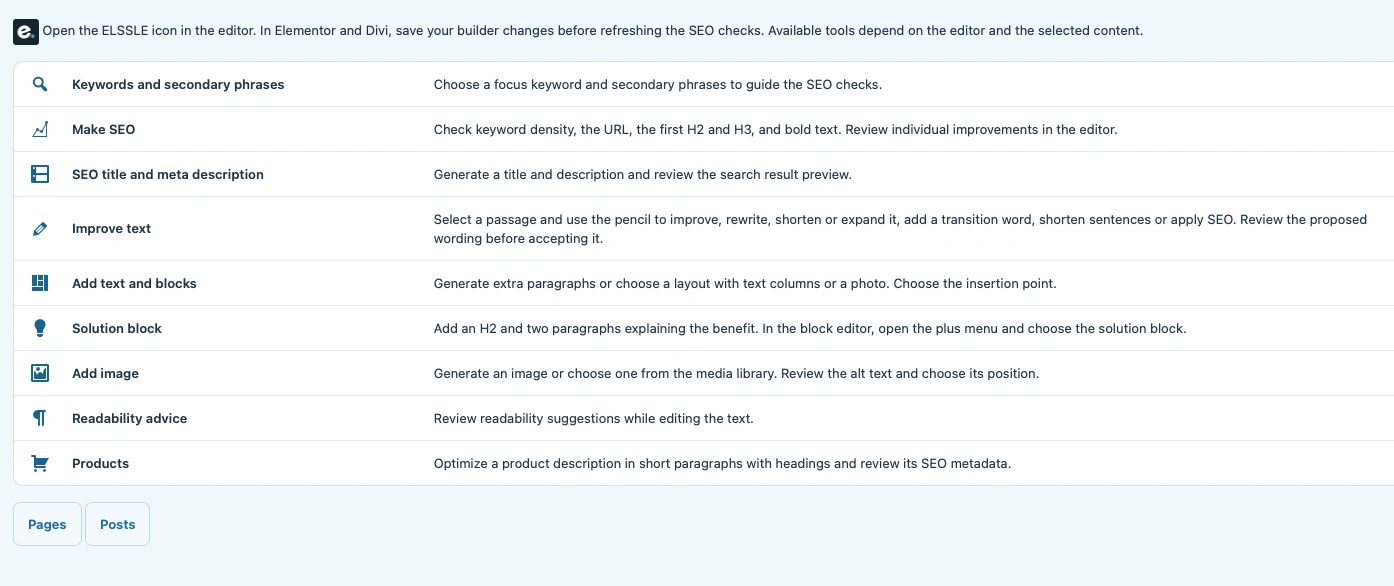
Working on an existing page, post or product? These nine elssle.ai tools sit alongside the content. Follow the guide for the task you want to complete.
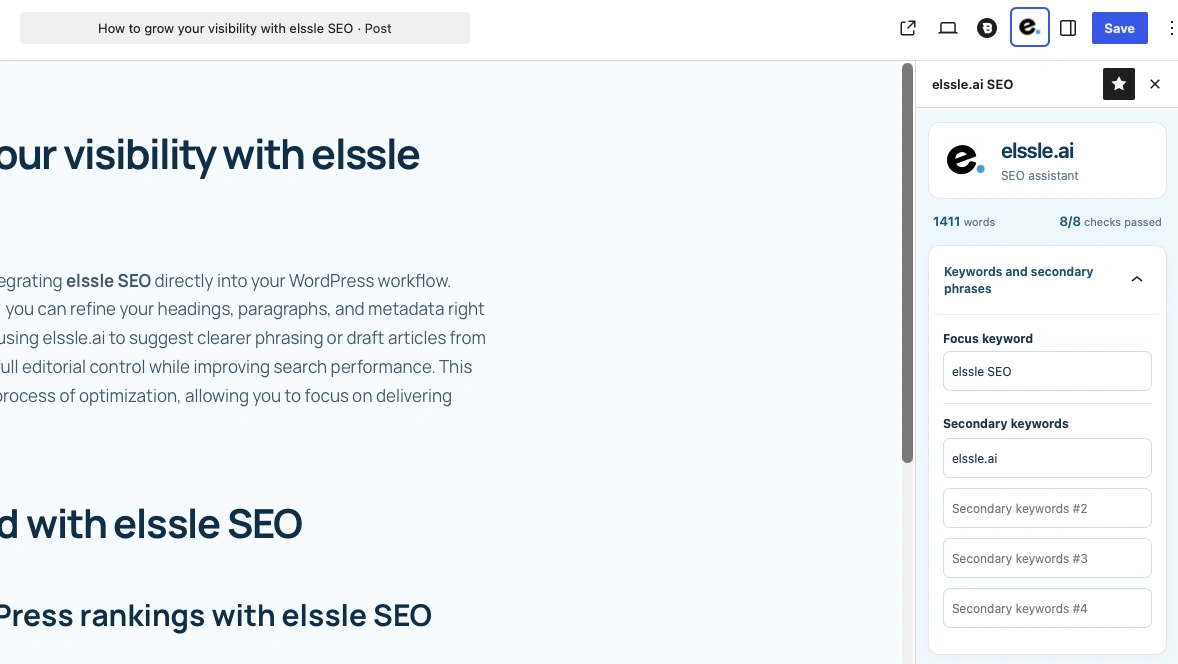
Keywords and secondary phrases
Choose one main search phrase for the page and add closely related terms. For a guide to heating a small bathroom, the secondary phrases might cover room size and thermostat placement. Use the suggestions that fit the reader’s question.
Improve your search visibility
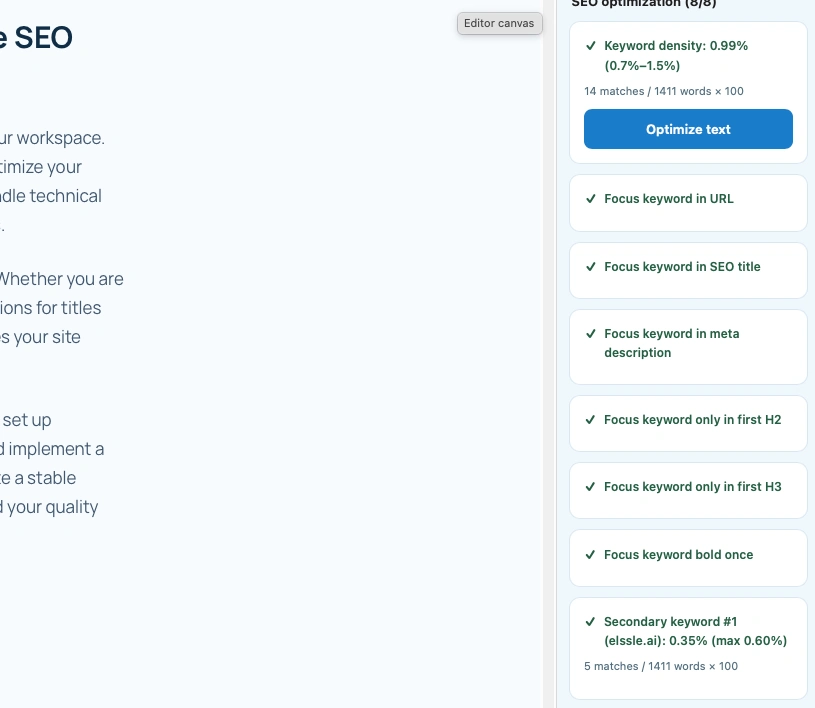
Run the elssle.ai checks on the current page. Look at the URL, keyword use, headings and emphasis, then choose an issue to work on. Review each proposed change in the editor so a useful paragraph keeps its meaning.
Search engine title and meta description
Write the search title and description yourself or ask elssle.ai to propose them. Read the preview as someone seeing the page for the first time. A product page should tell that person what is being sold and why it matches their search.
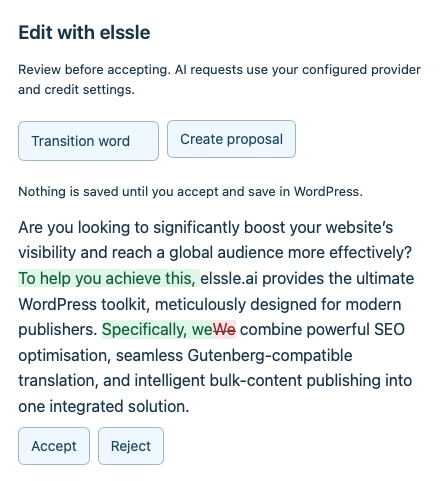
Improve text
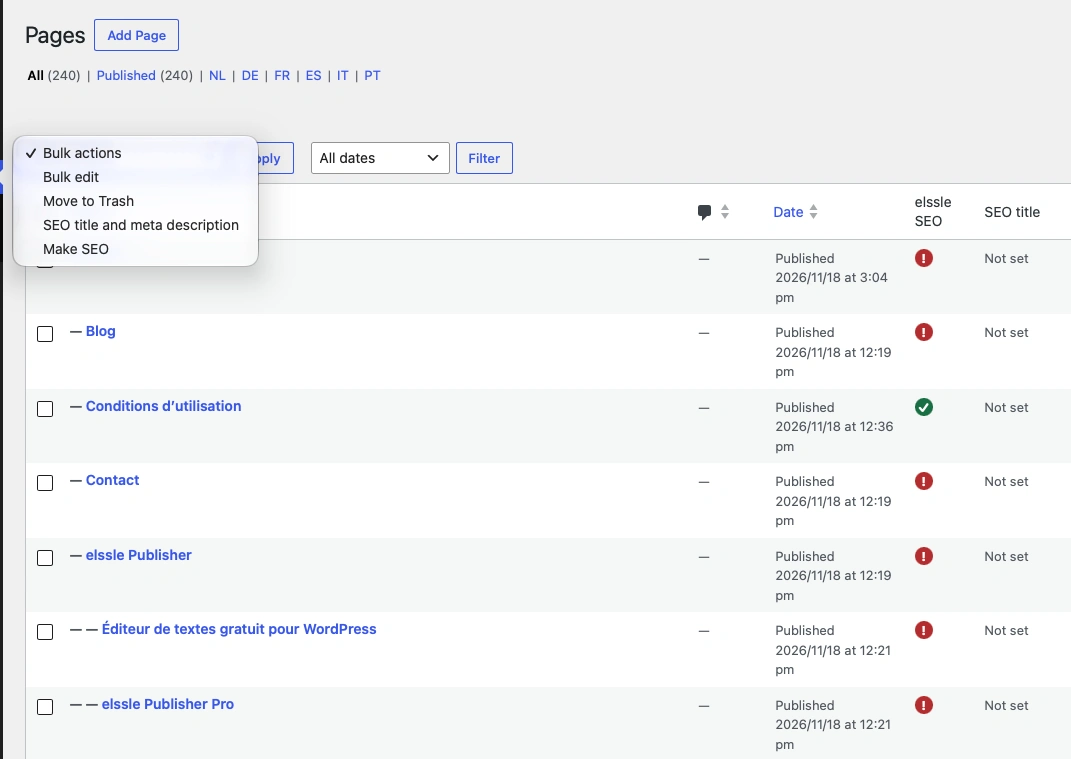
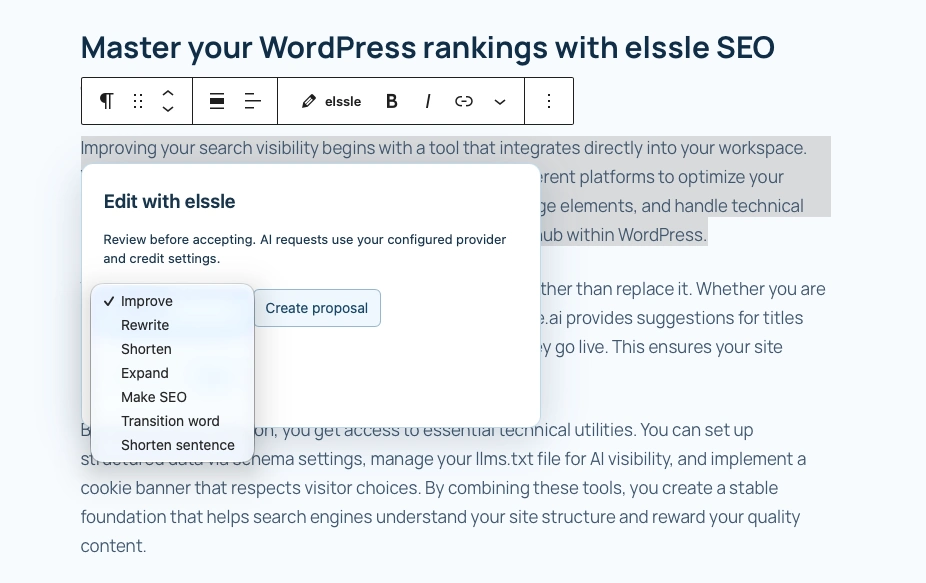
Select the passage you want to change. Ask elssle.ai to shorten a long sentence, expand a thin explanation or rewrite the paragraph in your chosen tone. Compare the result with the original before replacing it.
Add text and blocks
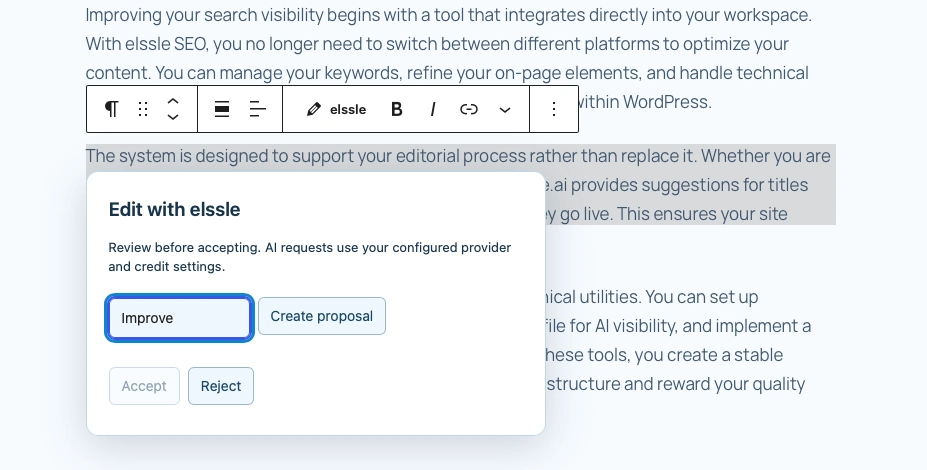
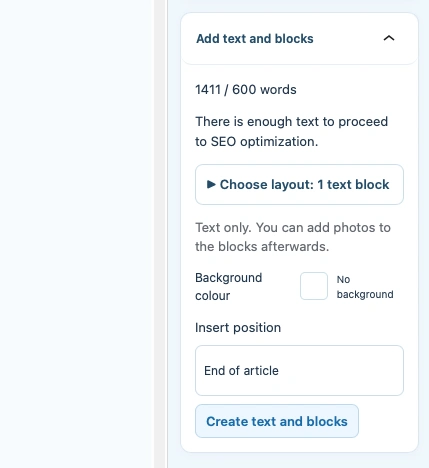
Choose the insertion point first. Add paragraphs where an explanation is missing, or choose a layout with columns or an image. You can edit the new copy in Gutenberg so it flows naturally into the sections on either side.
Solution block
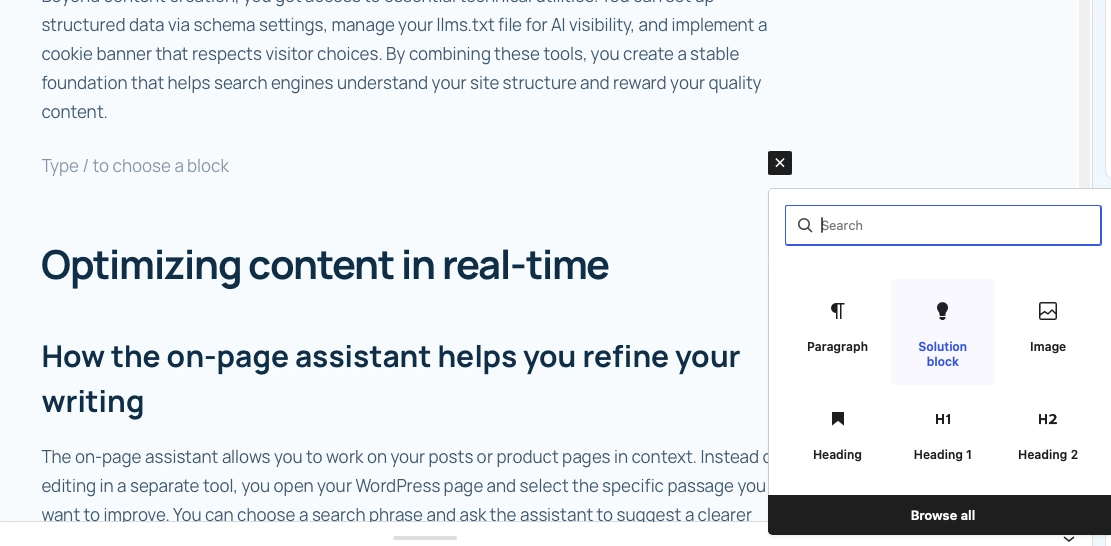
Turn a customer problem into a useful answer. Insert a solution block from the block editor and use its H2 and two paragraphs to explain what helps, how it works and who benefits. Add a concrete detail from your own experience.
Add image
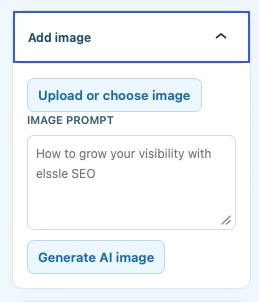
Place an image where it supports a specific passage. Choose one from your media library or generate a new one with elssle.ai. Check its position, then edit the alternative text to describe the visual information the reader needs.
Readability advice
Read the passage alongside the editor’s suggestions. Split a crowded sentence, clarify who is doing what or replace a vague phrase with a concrete example. Keep the technical terms your audience uses and accept the edits that make the explanation easier to follow.
Products
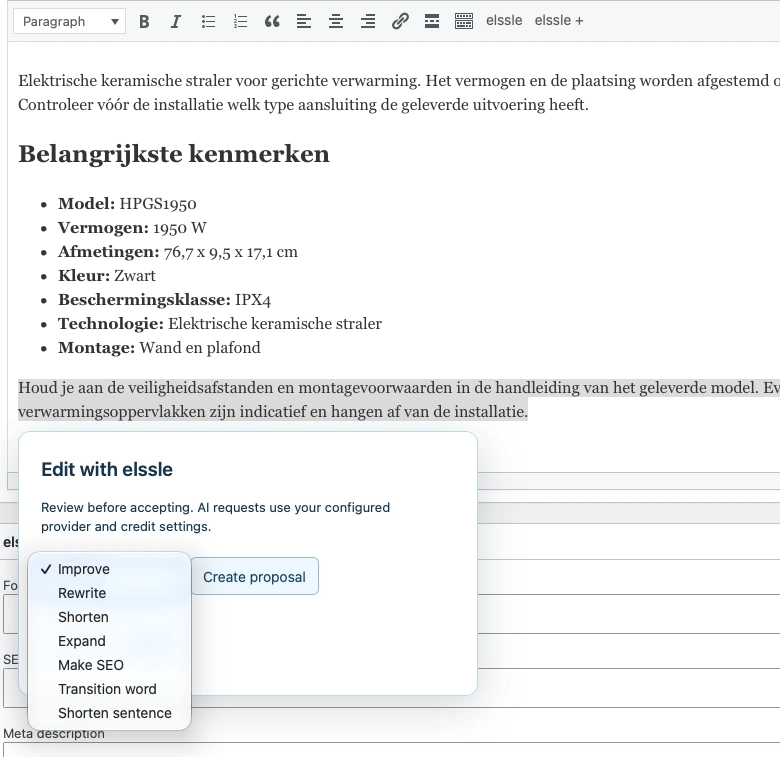
Work on the product description and its search metadata together. Arrange benefits and specifications into short paragraphs with useful headings. Ask elssle.ai to improve the wording, then verify dimensions, materials and other purchasing details against the product information.
Set up elssle SEO search optimization for your website
Open the dashboard guide to find your way around the plugin, or add your business details in the website profile. For help choosing the daily allowance for your site, compare the plans or contact us.

Use ChatGPT with elssle search optimization
Connect your WordPress site to OpenAI’s ChatGPT with WPVibe. In the chat, name the page and what you want to improve. Ask for changes to headings, page copy or internal links, or have ChatGPT open elssle SEO’s Articles editor in WordPress to generate a draft with your configured provider.
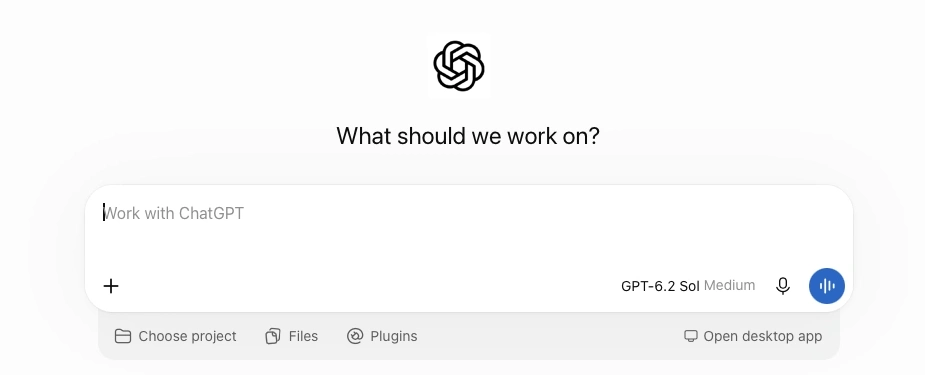
Try asking ChatGPT
- “Review my Services page for the focus keyword “WordPress maintenance”. Suggest a clearer H1 and an internal link. Show me the changes first.”
- “Rewrite the introduction on my About page in a friendly, professional tone. Keep the existing facts and links.”
- “Open elssle SEO → Articles in WordPress and generate an English draft about preparing a WordPress site for launch. Use “WordPress launch checklist” as the focus keyword.”